
All staff have the option to log into the Homeview Launcher as their Home screen for Evolv. If it is not what shows up when you log into the system, you can access it by clicking on taskbar on the top menu bar.
Navigate to Taskbar > MyEvolv > Homeview Launcher > Homeview
- Click on

- You will see a list of all the widgets you have access to

- Choose which widgets you want showing on your Homeview by selecting the checkbox next to the title of each one you want to see
- Typical widgets for clinical staff are:
-
- My Alerts
- My Clients
- My Saved Report Queries
- Notes to Complete
- My Tasks (will show any scheduled tasks for you-such as treatment plan reviews or assessments due that haven’t been started)
- Waiting Room (for outpatient staff)
-
Once you have selected which groups you want
- Click the “Widgets” button at the top of the screen again
- The list of potential widgets will disappear (you can always click on it again and make adjustments as desired)

- The widgets themselves will appear and populate with data on your Homescreen
-
- Rearrange the widgets how you would like by clicking on the widget and dragging wherever you would like.
- They can be either the width of ½ the page or the whole page
-

- Save your layout by clicking “Save” at the top of the screen (you can change the layout at any time by dragging a widget where you want and saving the layout. If you do and want it to stay that way just make sure that you save the changes)

- You will get a pop up box that looks like this

- Click Ok
Icons on the Homeview screen

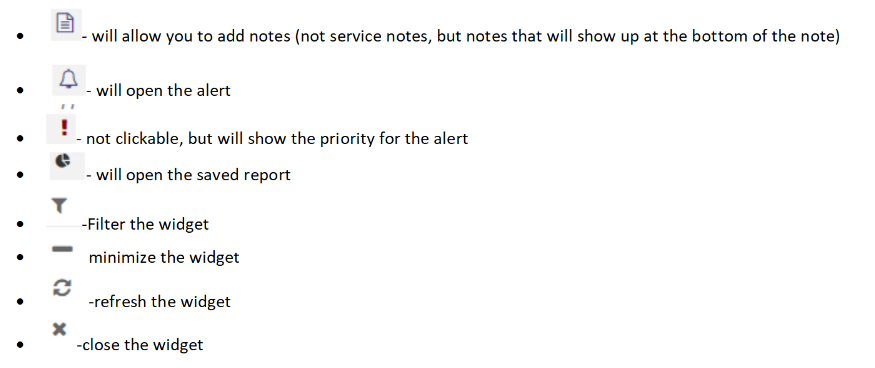
Filtering Widgets
Each widget can be filtered to show a subset of the data. This can be done in two ways
- Filter control in the upper right hand side of the widget.
- Clicking on the header of the columns
Filter Controls
Click on the filter icon

You will get a pop up box that looks something like this (the filter options will be different based on the chosen widget. This screen shot is for the My Clients widget

- Enter your search parameters
-
- Operator- you will get the options for filtering (the options will be different based on the type of field)
-
This is the one for name

Enter the filter criteria

- Click Apply
-
- It will return all applicable responses for the identified criteria
-

You will also get a notice that there are filters applied
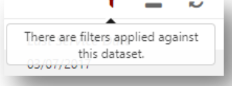
To get rid of the filter click on the filter icon again and it will bring up your filter criteria

Click on "Clear" and it will remove the filter
Column Headers
- Click on the Column that you want to search /filter and you will get icons that look like this

The arrows will filter in alphabetical/chronological order or reverse alphabetical/chronological order
- If you click on the magnifying glass icon it will bring up a search box
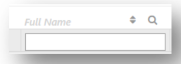
- Type in a value that you want to find and it will return all the applicable responses

Comments
0 comments
Please sign in to leave a comment.